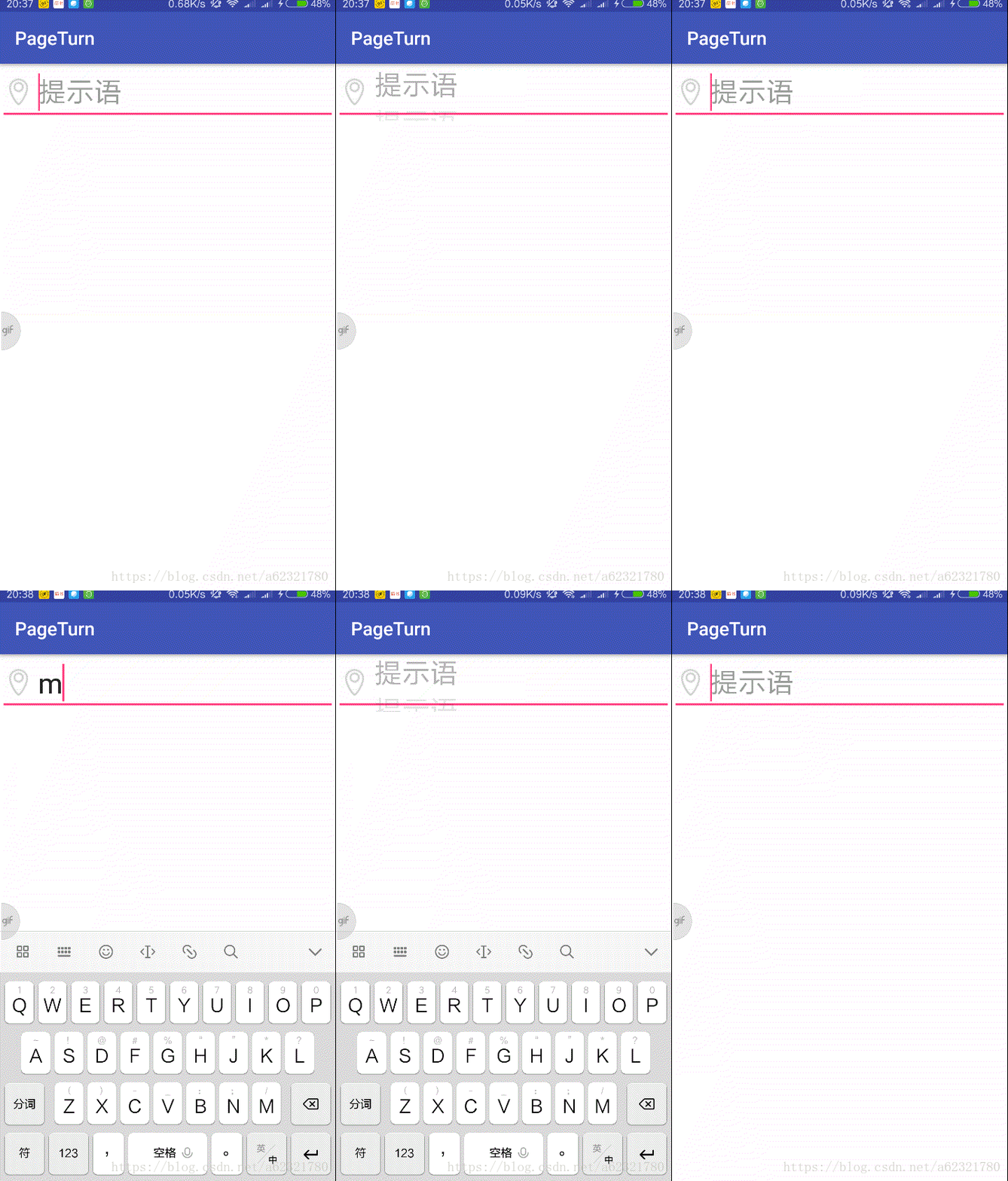
简介 最近看到头条的首页顶部搜索框有一个切换hint文字的动画效果,比较好奇它是怎么实现的,经过一番探索发现这个顶部的搜索框并不是真正的搜索框,点击之后是直接跳转到搜索界面,本身并不是一个EditText。这样的实现方式让我顿时感觉索然无味,同时不禁思考,难道不能在一个EditText控件上实现这样的效果吗?百度、google了一番发现并没有找到相关的效果实现,于是决定自己撸一个。起初并没有头绪,后来想起来google官方出的TextInputLayout好像有涉及到EditText的hint动画效果,就研究了一番TextInputLayout的源码,并参考源码实现本文的hint轮播效果。头条与本文实现的效果如下图
原理介绍 通过阅读TextInputLayout的源码发现hint的绘制其实不是EditText绘制的,而是TextInpuLayout来进行绘制,它通过获得子控件EditText的hint绘制区域,来自己完成hint相关的绘制与动画操作,而EditText是不设置hint的。有了这个思路,我们就可以开发本文要介绍的控件AutoHintLayout。
实现AutoHintLayout AutoHintLayout继承自LinearLayout,它需要至少有一个EditText子View,且对外提供一个设置hint的方法来设置hint值并实现切换的动画效果,动画相关的效果我们通过一个AutoHintHelper来集中处理,这样可以避免AutoHintLayout内堆砌太多逻辑。首先我们先定义AutoHintHelper对外提供的方法,具体实现后面详解
1 2 3 4 5 6 7 8 9 10 11 12 13 14 15 16 17 18 19 20 21 22 23 24 25 26 27 28 29 30 31 32 33 34 35 36 37 38 39 40 41 42 43 44 45 46 47 48 49 50 51 52 53 54 55 56 57 58 59 60 61 62 63 public class AutoHintHelper { private View mView; private final Rect mHintBounds = new Rect (); private String mLastHintText = "" ; private String mHintText = "" ; private float mHintTextSize = 15 ; private ColorStateList mHintTextColor; private Typeface mTypeFace; private int mGravity = Gravity.CENTER_VERTICAL; private int [] state; private Paint mPaint = new Paint (); public AutoHintHelper (View mView) { this .mView = mView; } public void setHintText (String text, boolean anim) { ... } public void setHintTextSize (float mHintTextSize) { ... } public void setHintTextColor (ColorStateList mHintTextColor) { ... } public void setTypeFace (Typeface mTypeFace) { .... } public void setState (int [] state) { .... } public void setGravity (int mGravity) { .... } void setHintBounds (int left, int top, int right, int bottom) { .... } public void showHint (boolean showHint) { .... } public void draw (Canvas canvas) { } }
实现AutoHintLayout 首先我们要获得EditText绘制hint的相关属性,如颜色、字体、字体大小、Gravity等,在AutoHintLayout的addView方法中我们可以获取到EditText,并将对应的属性设置给AutoHintHelper,实现如下
1
2
3
4
5
6
7
8
9
10
11
12
13
14
15
16
17
18
19
20
21
22
23
24
25
26
27
28
29
30
31
32
33
34
35
36
@Override public void addView (View child, int index, ViewGroup.LayoutParams params) { super .addView(child, index, params); if (child instanceof EditText) { setEditText((EditText) child); } } private void setEditText (EditText editText) { this .mEditText = editText; mAutoHintHelper.setHintTextColor(mEditText.getHintTextColors()); mAutoHintHelper.setHintTextSize(mEditText.getTextSize()); mAutoHintHelper.setTypeFace(mEditText.getTypeface()); mAutoHintHelper.setGravity(mEditText.getGravity()); mEditText.addTextChangedListener(new TextWatcher () { @Override public void beforeTextChanged (CharSequence s, int start, int count, int after) { } @Override public void onTextChanged (CharSequence s, int start, int before, int count) { } @Override public void afterTextChanged (Editable s) { if (TextUtils.isEmpty(mEditText.getText().toString())) { mAutoHintHelper.showHint(true ); } else { mAutoHintHelper.showHint(false ); } } }); }
同时我们也给EditText设置了textChanged监听,在EditText输入字符的时候设置不显示hint,反之显示hint。然后我们需要在onLayout方法中给AutoHintHelper设置hint的绘制区域
1
2
3
4
5
6
7
8
9
10
11
12
13
14
15
16
17
18
19
20
21
22
@Override protected void onLayout (boolean changed, int l, int t, int r, int b) { super .onLayout(changed, l, t, r, b); if (mEditText != null ) { final Rect rect = new Rect (); setChildRect(mEditText, rect); l = rect.left + mEditText.getCompoundPaddingLeft(); r = rect.right - mEditText.getCompoundPaddingRight(); mAutoHintHelper.setHintBounds( l, rect.top + mEditText.getCompoundPaddingTop(), r, rect.bottom - mEditText.getCompoundPaddingBottom()); } } void setChildRect (View child, Rect out) { out.set(0 , 0 , child.getWidth(), child.getHeight()); offsetDescendantRectToMyCoords(child, out); }
其中setChildRect方法是获取到EditText在AutoHintlayout中的位置,然后加上四边的padding就可以了。
1
2
3
4
5
6
7
8
9
@Override public void draw (Canvas canvas) { super .draw(canvas); mAutoHintHelper.draw(canvas); } public void setHint (String text, boolean anim) { mAutoHintHelper.setHintText(text, anim); }
实现AutoHintHelper 主要的动画、绘制逻辑都由这个类实现,首先我们需要确定绘制hint的x和y坐标。EditText的Gravity不同和hint的长度不同会导致绘制hint的x、y坐标不一样(注意这里计算的x、y坐标指的是EditText正常显示hint的坐标,具体动画过程中的y偏移量在draw方法里添加),实现如下
1 2 3 4 5 6 7 8 9 10 11 12 13 14 15 16 17 18 19 20 21 22 23 24 25 26 27 28 29 30 31 32 33 34 35 36 37 38 39 40 41 42 43 44 45 private float mLastDrawX; private float mDrawX; private float mDrawY; private void calculateDrawXY () { float lastHintLength = mPaint.measureText(mLastHintText, 0 , mLastHintText.length()); float hintLength = mPaint.measureText(mHintText, 0 , mHintText.length()); switch (mGravity & GravityCompat.RELATIVE_HORIZONTAL_GRAVITY_MASK) { case Gravity.CENTER_HORIZONTAL: mLastDrawX = mHintBounds.centerX() - (lastHintLength / 2 ); mDrawX = mHintBounds.centerX() - (hintLength / 2 ); break ; case Gravity.RIGHT: mLastDrawX = mHintBounds.right - lastHintLength; mDrawX = mHintBounds.right - hintLength; break ; case Gravity.LEFT: default : mLastDrawX = mDrawX = mHintBounds.left; break ; } switch (mGravity & Gravity.VERTICAL_GRAVITY_MASK) { case Gravity.BOTTOM: mDrawY = mHintBounds.bottom; break ; case Gravity.TOP: mDrawY = mHintBounds.top - mPaint.ascent(); break ; case Gravity.CENTER_VERTICAL: default : float textHeight = mPaint.descent() - mPaint.ascent(); float textOffset = (textHeight / 2 ) - mPaint.descent(); mDrawY = mHintBounds.centerY() + textOffset; break ; } }
然后就是设置一些绘制属性的方法了,每一次更改属性都需要重新计算一遍绘制的坐标
1
2
3
4
5
6
7
8
9
10
11
12
13
14
15
16
17
18
19
20
21
22
23
24
25
26
27
28
29
30
31
32
33
34
35
36
37
public void setHintTextSize (float mHintTextSize) { this .mHintTextSize = mHintTextSize; mPaint.setTextSize(mHintTextSize); calculateDrawXY(); } public void setHintTextColor (ColorStateList mHintTextColor) { this .mHintTextColor = mHintTextColor; } public void setTypeFace (Typeface mTypeFace) { this .mTypeFace = mTypeFace; mPaint.setTypeface(mTypeFace); calculateDrawXY(); } public void setState (int [] state) { this .state = state; } public void setGravity (int mGravity) { this .mGravity = mGravity; calculateDrawXY(); mView.invalidate(); } void setHintBounds (int left, int top, int right, int bottom) { Log.d("Debug" , "set bounds:" + left + " " + top + " " + right + " " + bottom); if (!rectEquals(mHintBounds, left, top, right, bottom)) { mHintBounds.set(left, top, right, bottom); onBoundsChanged(); } } private void onBoundsChanged () { calculateDrawXY(); mView.invalidate(); }
接下来实现setHintText方法,每次外部调用这个方法首先更新hint和lastHint的值,然后开启一个ValueAnimator来开始动画,通过调用mView的invalidate方法触发draw方法绘制当前的hint
1
2
3
4
5
6
7
8
9
10
11
12
13
14
15
16
17
18
19
20
21
22
23
24
25
26
27
28
29
30
31
32
33
34
35
36
37
private ValueAnimator mAnimator; private float mCurrentFraction = 0f ; private boolean mShowHint = true ; private void initAnim () { mAnimator = new ValueAnimator (); mAnimator.setDuration(300 ); mAnimator.setFloatValues(0f , 1f ); mAnimator.addUpdateListener(new ValueAnimator .AnimatorUpdateListener() { @Override public void onAnimationUpdate (ValueAnimator animation) { mCurrentFraction = animation.getAnimatedFraction(); mView.invalidate(); } }); } public void setHintText (String text, boolean anim) { mLastHintText = mHintText; mHintText = text; if (mAnimator.isRunning()) { mAnimator.cancel(); } calculateDrawXY(); if (anim) { mCurrentFraction = 0f ; mAnimator.start(); } else { mCurrentFraction = 1f ; mView.invalidate(); } } public void showHint (boolean showHint) { mShowHint = showHint; mView.invalidate(); }
首先需要将运行中的动画取消,然后重新计算绘制坐标,如果不需要动画则直接设置mCurrentFraction为1,draw的时候将直接绘制当前的hint,不做任何动画,反之开启动画。
1
2
3
4
5
6
7
8
9
10
11
12
13
14
15
public void draw (Canvas canvas) { if (!mShowHint) { return ; } mPaint.setColor(state == null ? mHintTextColor.getDefaultColor(): mHintTextColor.getColorForState(state, 0 )); float boundsHeight = mHintBounds.bottom - mHintBounds.top; float offsetY = boundsHeight * mCurrentFraction; canvas.drawText(mLastHintText, 0 , mLastHintText.length(), mLastDrawX, mDrawY - offsetY, mPaint); canvas.drawText(mHintText, 0 , mHintText.length(), mDrawX, boundsHeight + mDrawY - offsetY, mPaint); }
首先通过mCurrentFraction计算出当前的y偏移值,也就是lastHint应该向上滚动的距离,绘制lastHint的时候将mDrawY减去offset就可以了。绘制当前hint的时候需要在lastHint的基础上加上boundsHeight,也就是说新的hint在老的hint下方boundsHeight距离,boundsHeight就是绘制hint区域的高度。
扩展 到此就基本实现了hint滚动播放的效果,但是仔细想想,hint的动画只会有这么一种吗?如果我需要别的动画效果呢?我是不是需要重新写对应的XXHintLayout类?这里就要考虑到扩展性,无论什么动画,只要我们提供hint绘制区域、绘制的paint、动画播放进度等信息就可以实现,所以这里抽象出一个接口IAutoHintDrawer来实现具体的绘制方法
1 2 3 4 5 6 7 8 public interface IAutoHintDrawer { void draw (Rect drawBounds, float lastDrawX, float drawX, float drawY, float fraction, String lastHint, String currHint, Canvas canvas, Paint paint) ; }
然后在AutoHintHelper的draw方法中调用IAutoHintDrawer的draw方法来实现,而IAutoHintDrawer的实例由具体的业务方实现然后传入,具体的实现就不赘述了,本项目的代码已经上传到Github ,欢迎交流。